Overview
To access Look Dev in Unity, go to Window > Experimental > Look Dev.
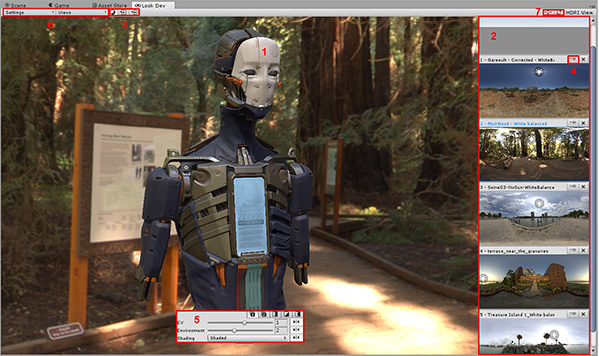
Shortcut buttons for Environment shadow and Look Dev view
Shortcut buttons for HDRI view
Controlling the camera
The Look Dev cameraA component which creates an image of a particular viewpoint in your scene. The output is either drawn to the screen or captured as a texture. More info
See in Glossary largely shares its behavior with the camera in the SceneA Scene contains the environments and menus of your game. Think of each unique Scene file as a unique level. In each Scene, you place your environments, obstacles, and decorations, essentially designing and building your game in pieces. More info
See in Glossary view:
Rotate around pivot: Left click and drag (this is the same as in Scene view, except Look Dev doesn’t require Alt+left click)
Pan camera: Middle click and drag
Zoom: Alt+right click and drag
Forward/backward: Mouse wheel
FPSSee first person shooter, frames per second.
See in Glossary mode: Right click + WASD
Keyboard shortcuts
In Look Dev view:
Rotate environment: Ctrl+left click and drag
Rotate directional light for environmental shadow: Shift+left click and drag
Swap environment: Left/right arrow keys
Manipulate the separator: Hold Shift to rotate it in increments
Frame camera to the observed object: F
In HDRIhigh dynamic range image
See in Glossary view:
- Rotate environment: Ctrl+left click and drag